
Single Sign-On (SSO) with Okta
Okta SSO Integration Guide for RAD Security
Supported Features
- SP-initiated SSO (Single Sign-On)
- IdP-initiated SSO (through RAD Security at https://app.rad.security/enterprise-sso)
Requirements
- RAD Security application installed in your Okta instance
- An active RAD Security account
Configuration
After installing RAD Security, gather configuration options and contact RAD Security Support at support@rad.security
Step 1: Collect Information from Your Okta Dashboard
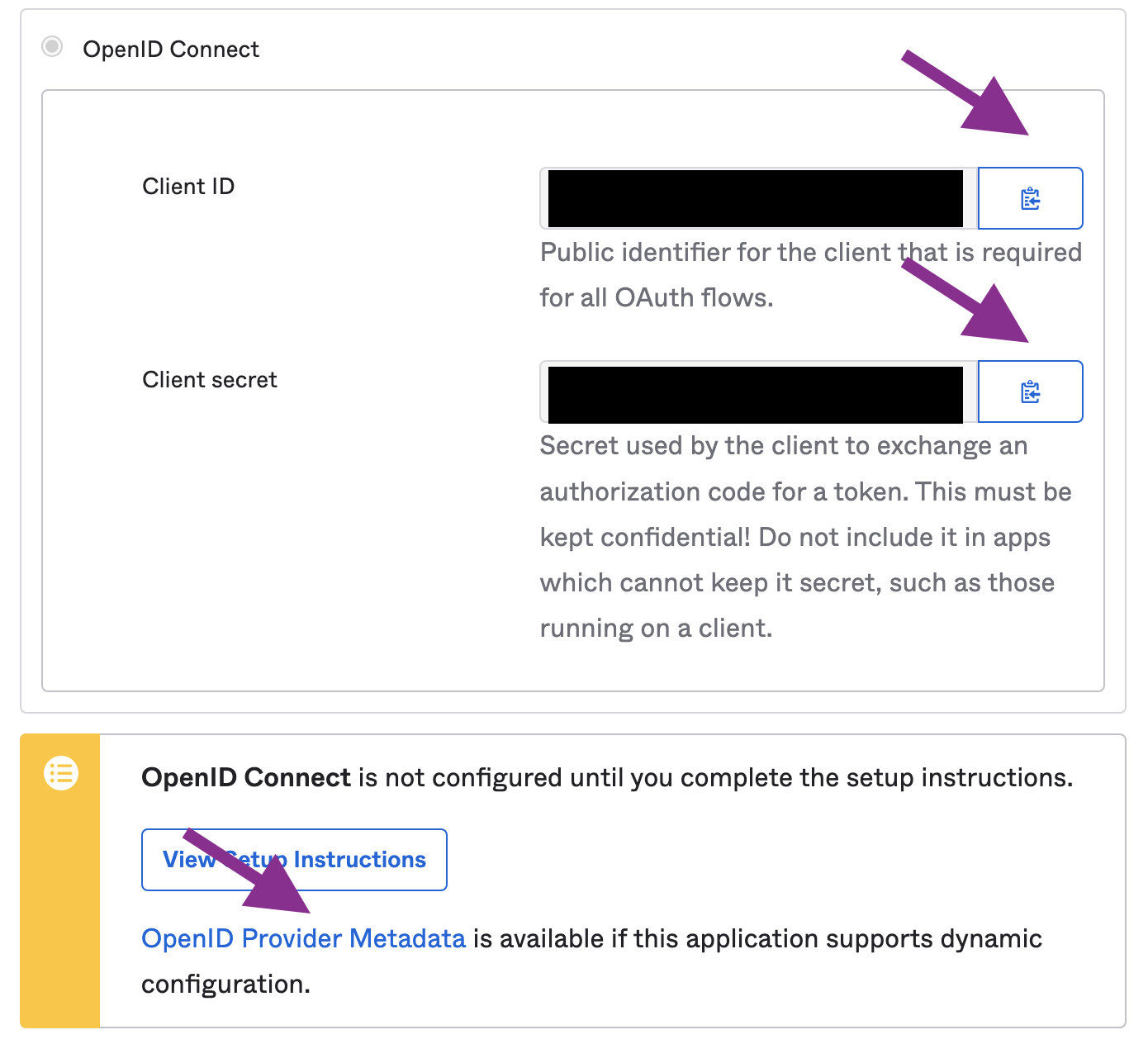
- Navigate to RAD Security application in Okta admin page
- Go to the Sign On tab
- Copy Client ID and Client secret
- Find OpenID Provider Metadata link and click it
- In the JSON document, locate the issuer key and copy the URL
- Send three items to support@rad.security:
- Client ID
- Client Secret
- Issuer URL
Step 2: Configure Advanced Sign-on Settings
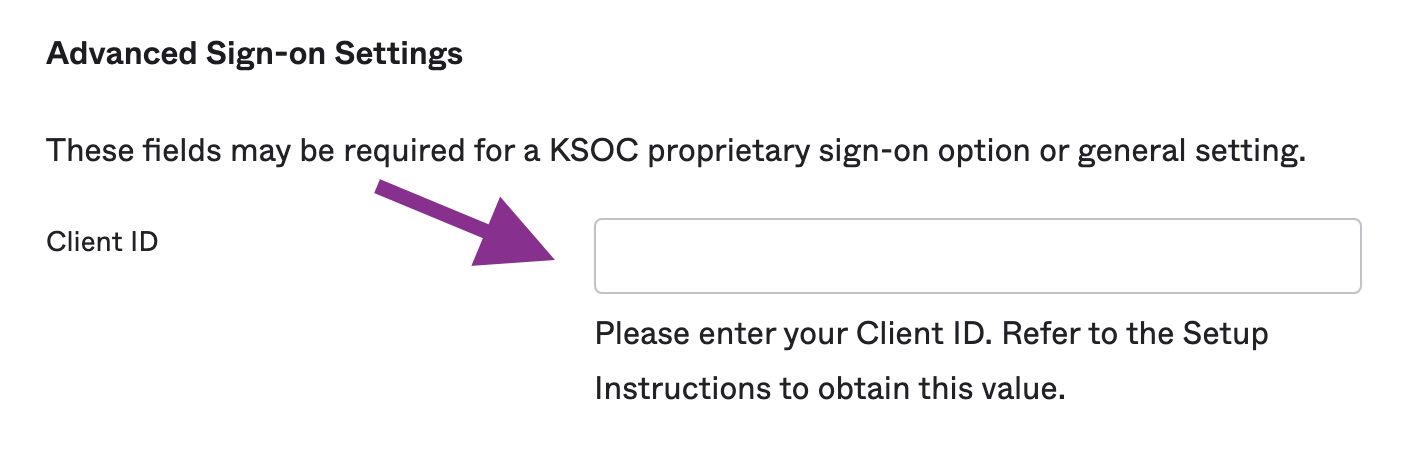
- Click Edit in top-right corner of Sign On tab
- Copy the Client ID value
- Paste into the field labeled Client ID
- Click Save
We will reply to confirm we received your options and again once your integration is ready.
Step 3: Link Account
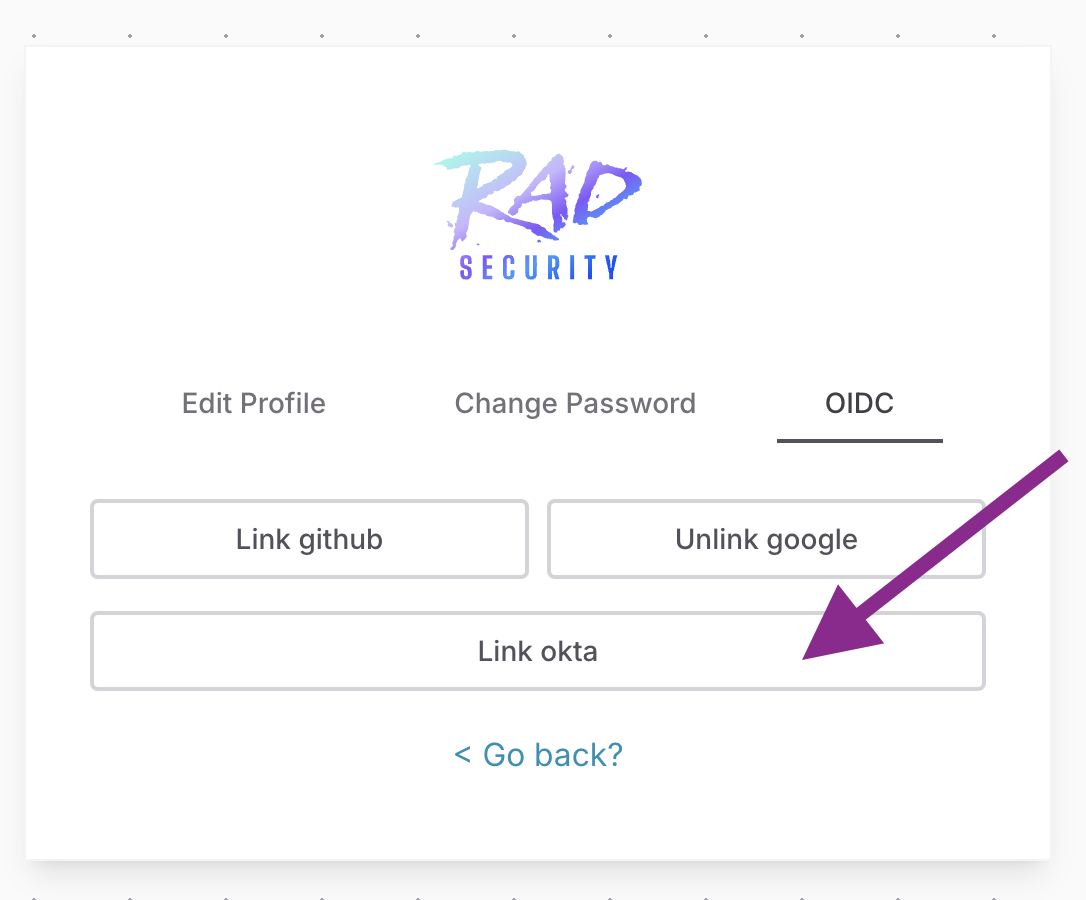
Once integration is ready, link your Okta account with RAD Security account by navigating to Preferences under your user account icon, then click OIDC.
Signing In
Once your account is linked, you can sign in from:
- Your Okta Dashboard
- RAD Security
To Sign In from RAD Security
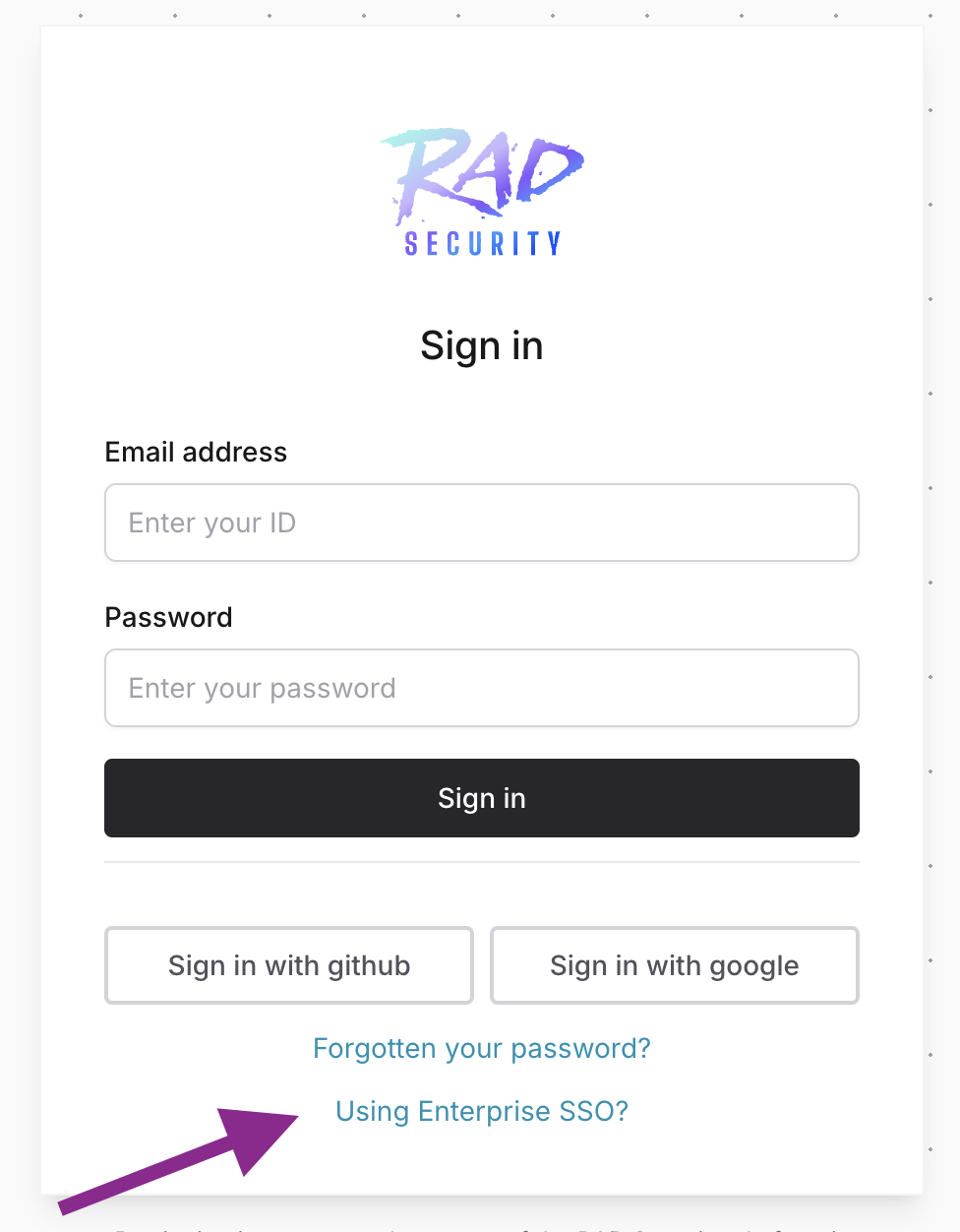
- Go to https://app.rad.security/sign-in
- Click Using Enterprise SSO?
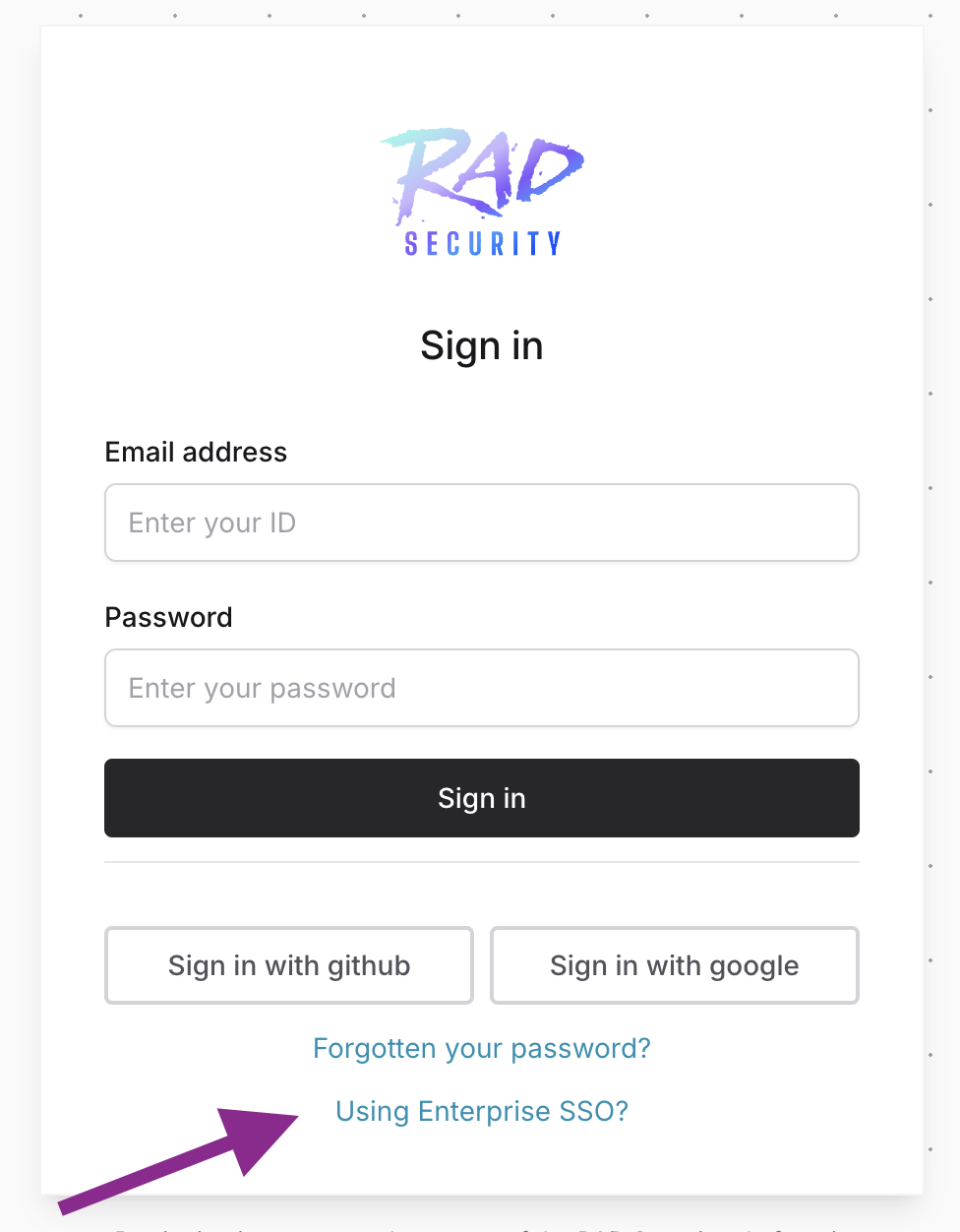
- Provide your email address and click Next

Was this page helpful?