Single Sign-On (SSO) with Microsoft using SAML
Configure enterprise SSO with Microsoft Azure Active Directory using SAML
Configuration
-
Log into Azure Portal
-
Navigate to Microsoft Entra ID
-
Make sure you are on the right tenant. If not you can switch by clicking Manage tenants
-
Navigate to Enterprise Applications
-
Click + New Application
-
Click Create your own application
-
Select Integrate any other application you don't find in the gallery (Non-gallery)
-
Enter a meaningful name for your application (for example RAD Security)
-
Click Create
-
Navigate to Manage → Single sign-on
-
Select SAML
-
Under Basic SAML Configuration, enter:
- Identifier (Entity ID):
https://api.rad.security/keycloak/realms/<tenant_id> - **Reply URL (Assertion Consumer Service URL): **
https://api.rad.security/keycloak/realms/<tenant_id>/broker/saml/endpoint
- Identifier (Entity ID):
Replace <tenant_id> with the value provided by RAD Security team.
- Locate App Federation Metadata URL in the SAML Certificates section
- IMPORTANT! Provide this URL to RAD Security team
Next Steps
Link Account
After RAD Security team confirms that the integration is ready, you need to link your account.
- Navigate to Preferences → OIDC
- Click Link SAML button
- Authenticate with Microsoft
Signing In
- Visit
https://app.rad.security/sign-in - Click Using Enterprise SSO?
- Enter your email address and select Next
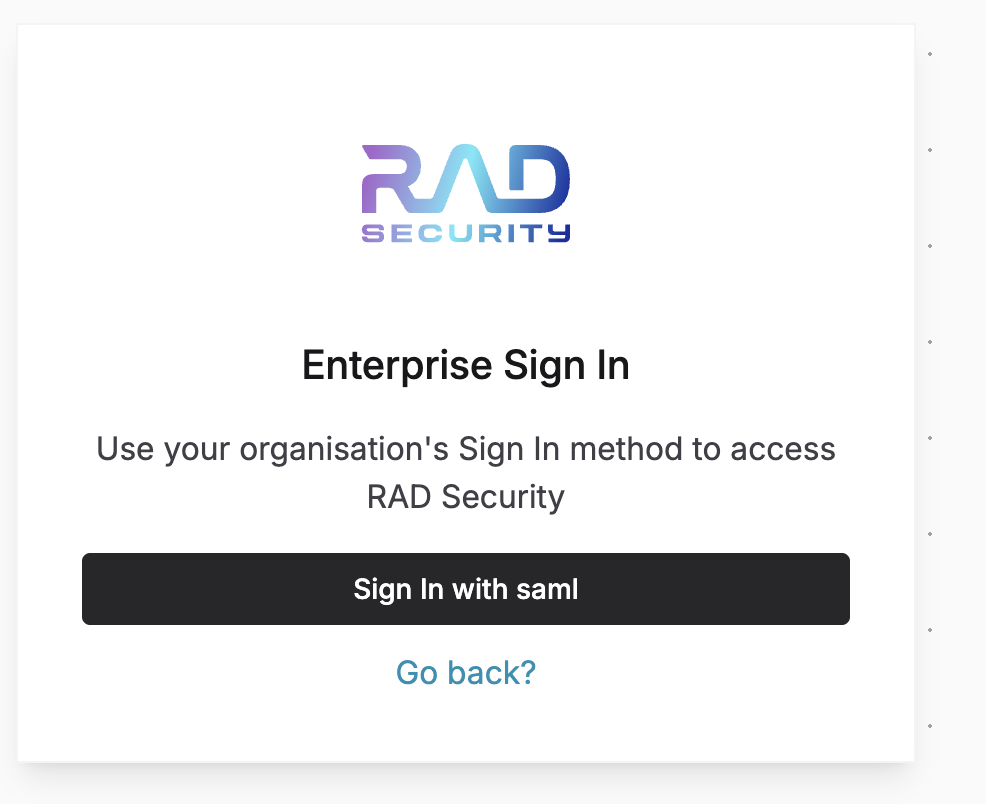
- Click Sign In with SAML button
Was this page helpful?