> ## Documentation Index
> Fetch the complete documentation index at: https://docs.rad.security/llms.txt
> Use this file to discover all available pages before exploring further.
# Single Sign-On (SSO) with Okta
> Okta SSO Integration Guide for RAD Security
## Supported Features
* SP-initiated SSO (Single Sign-On)
* IdP-initiated SSO (through RAD Security at [https://app.rad.security/enterprise-sso](https://app.rad.security/enterprise-sso))
## Requirements
* RAD Security application installed in your Okta instance
* An active RAD Security account
## Configuration
After installing RAD Security, gather configuration options and contact RAD Security Support at [support@rad.security](mailto:support@rad.security)
### Step 1: Collect Information from Your Okta Dashboard
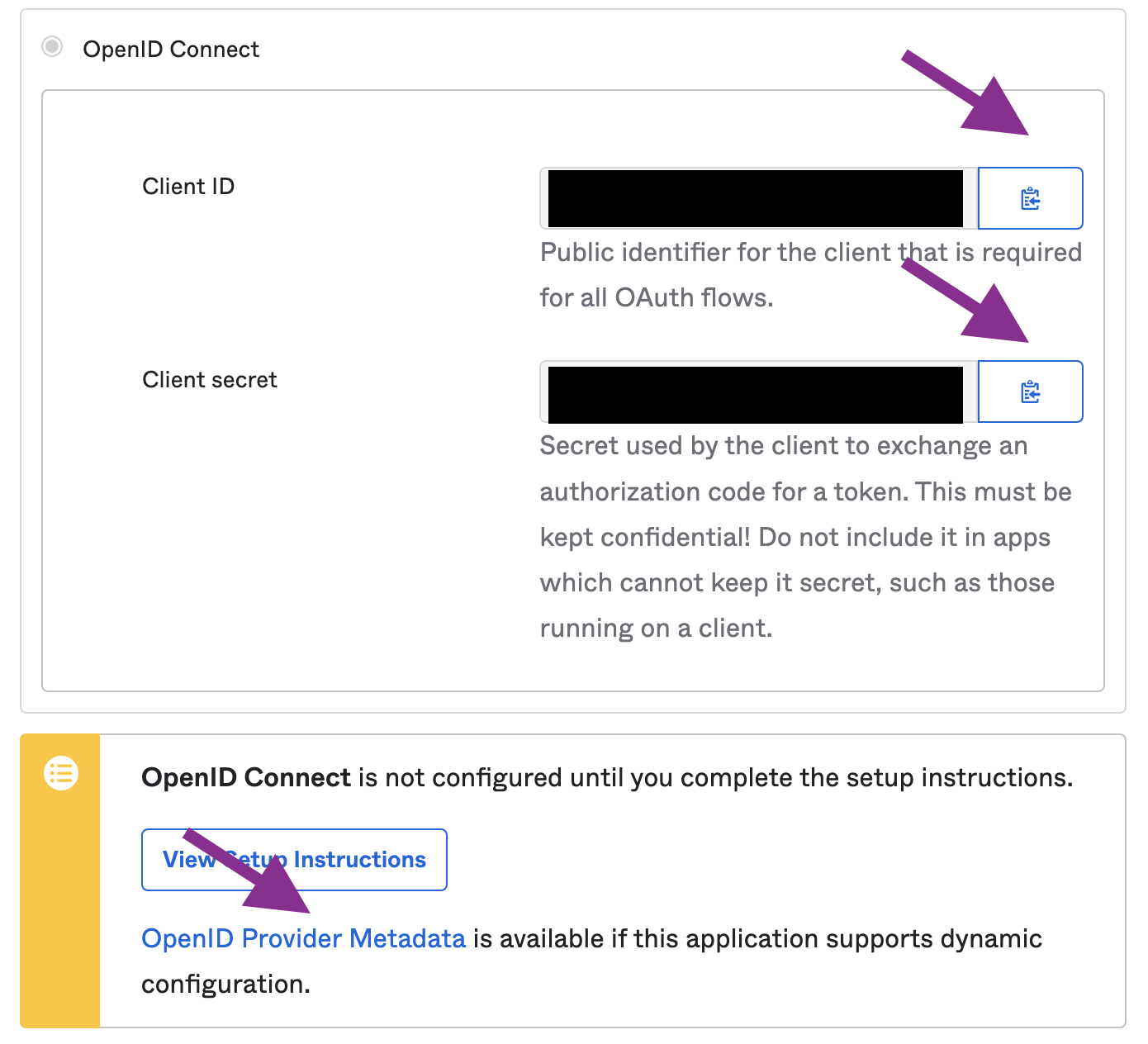
1. Navigate to RAD Security application in Okta admin page
2. Go to the **Sign On** tab
3. Copy **Client ID** and **Client secret**
4. Find **OpenID Provider Metadata** link and click it
5. In the JSON document, locate the **issuer** key and copy the URL
6. Send three items to [support@rad.security](mailto:support@rad.security):
* Client ID
* Client Secret
* Issuer URL
 ### Step 2: Configure Advanced Sign-on Settings
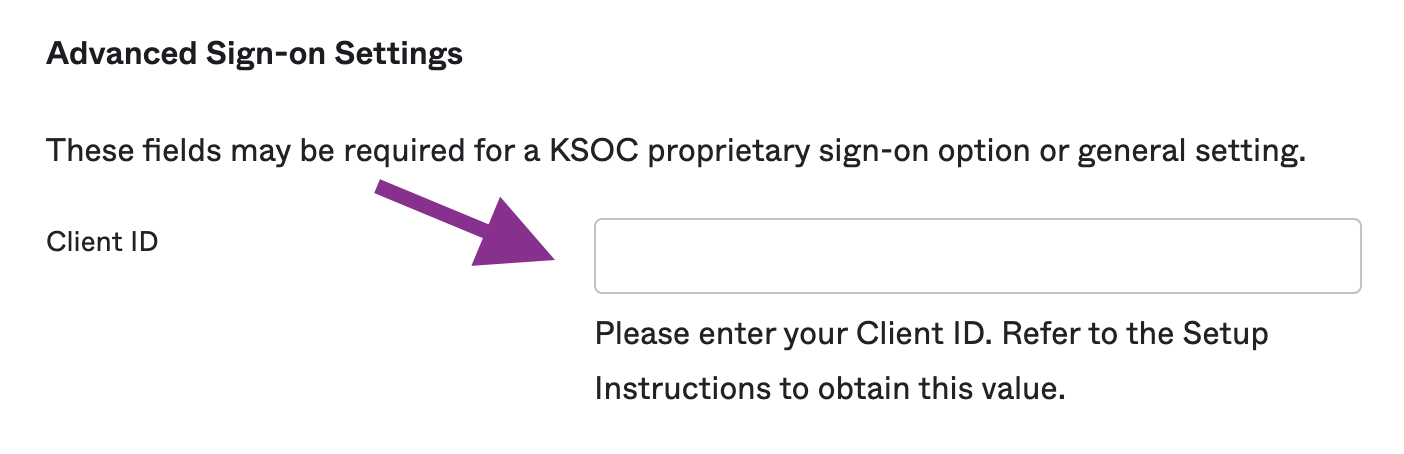
1. Click **Edit** in top-right corner of Sign On tab
2. Copy the **Client ID** value
3. Paste into the field labeled **Client ID**
4. Click **Save**
### Step 2: Configure Advanced Sign-on Settings
1. Click **Edit** in top-right corner of Sign On tab
2. Copy the **Client ID** value
3. Paste into the field labeled **Client ID**
4. Click **Save**
 We will reply to confirm we received your options and again once your integration is ready.
### Step 3: Link Account
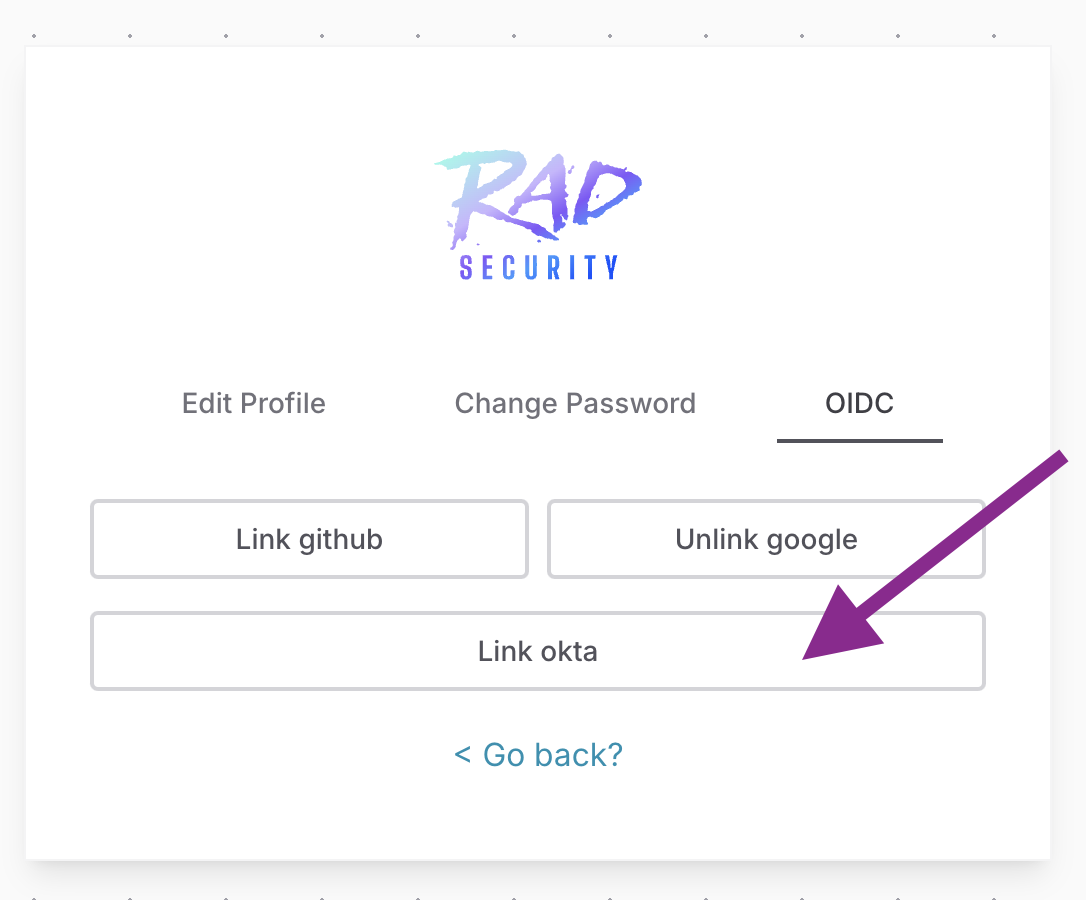
Once integration is ready, link your Okta account with RAD Security account by navigating to **Preferences** under your user account icon, then click **OIDC**.
We will reply to confirm we received your options and again once your integration is ready.
### Step 3: Link Account
Once integration is ready, link your Okta account with RAD Security account by navigating to **Preferences** under your user account icon, then click **OIDC**.
 ## Signing In
Once your account is linked, you can sign in from:
* Your Okta Dashboard
* RAD Security
### To Sign In from RAD Security
1. Go to [https://app.rad.security/sign-in](https://app.rad.security/sign-in)
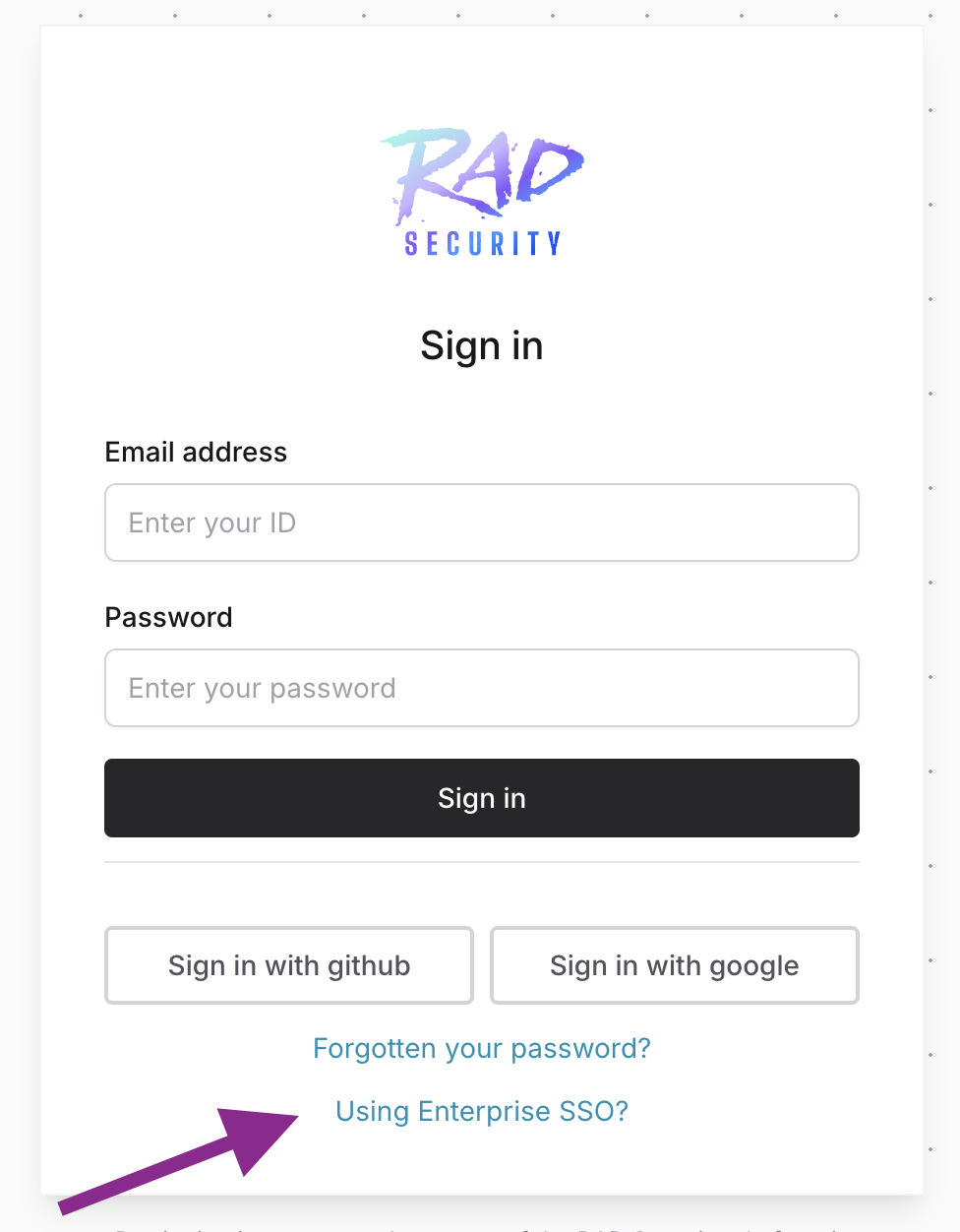
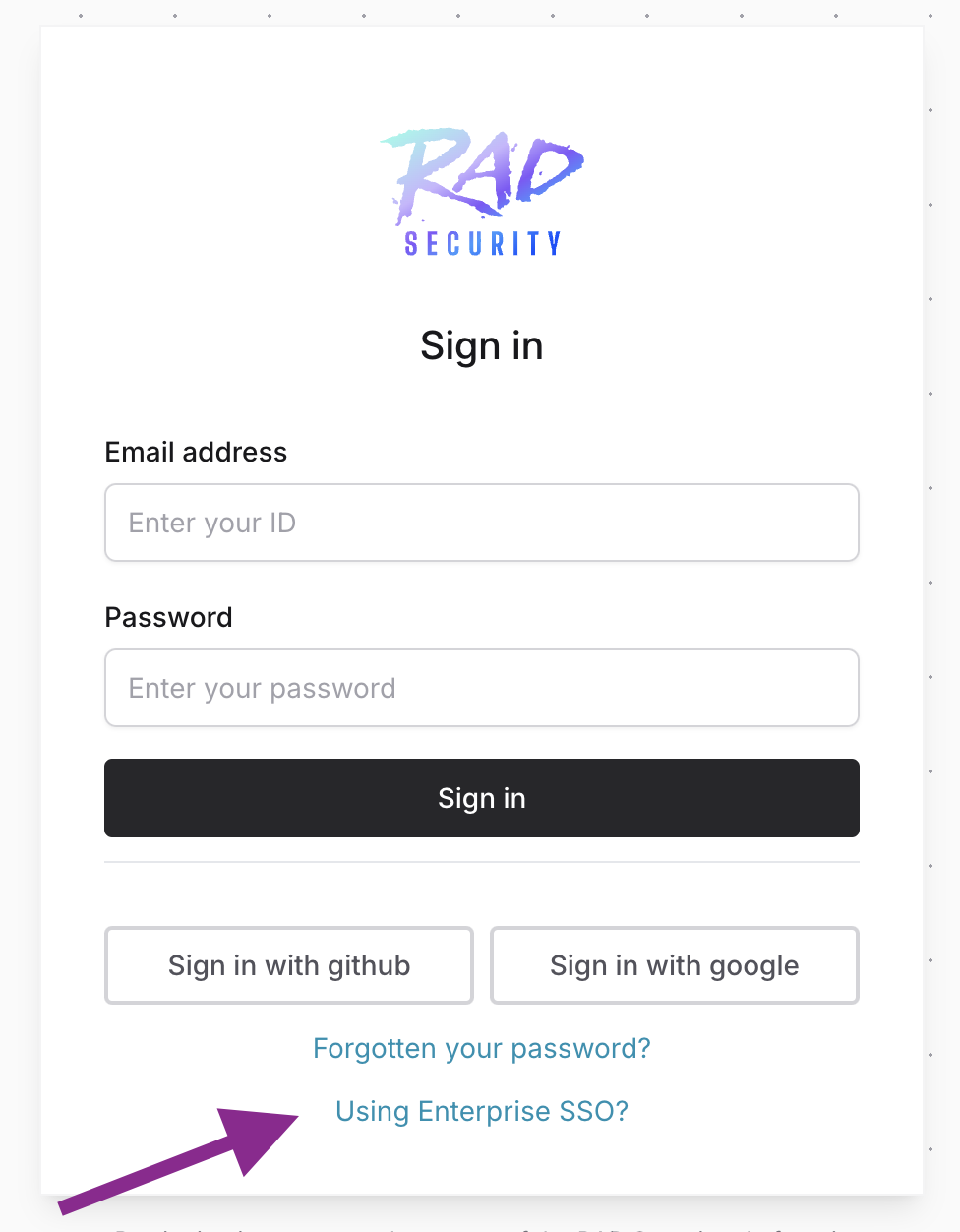
2. Click **Using Enterprise SSO?**
## Signing In
Once your account is linked, you can sign in from:
* Your Okta Dashboard
* RAD Security
### To Sign In from RAD Security
1. Go to [https://app.rad.security/sign-in](https://app.rad.security/sign-in)
2. Click **Using Enterprise SSO?**
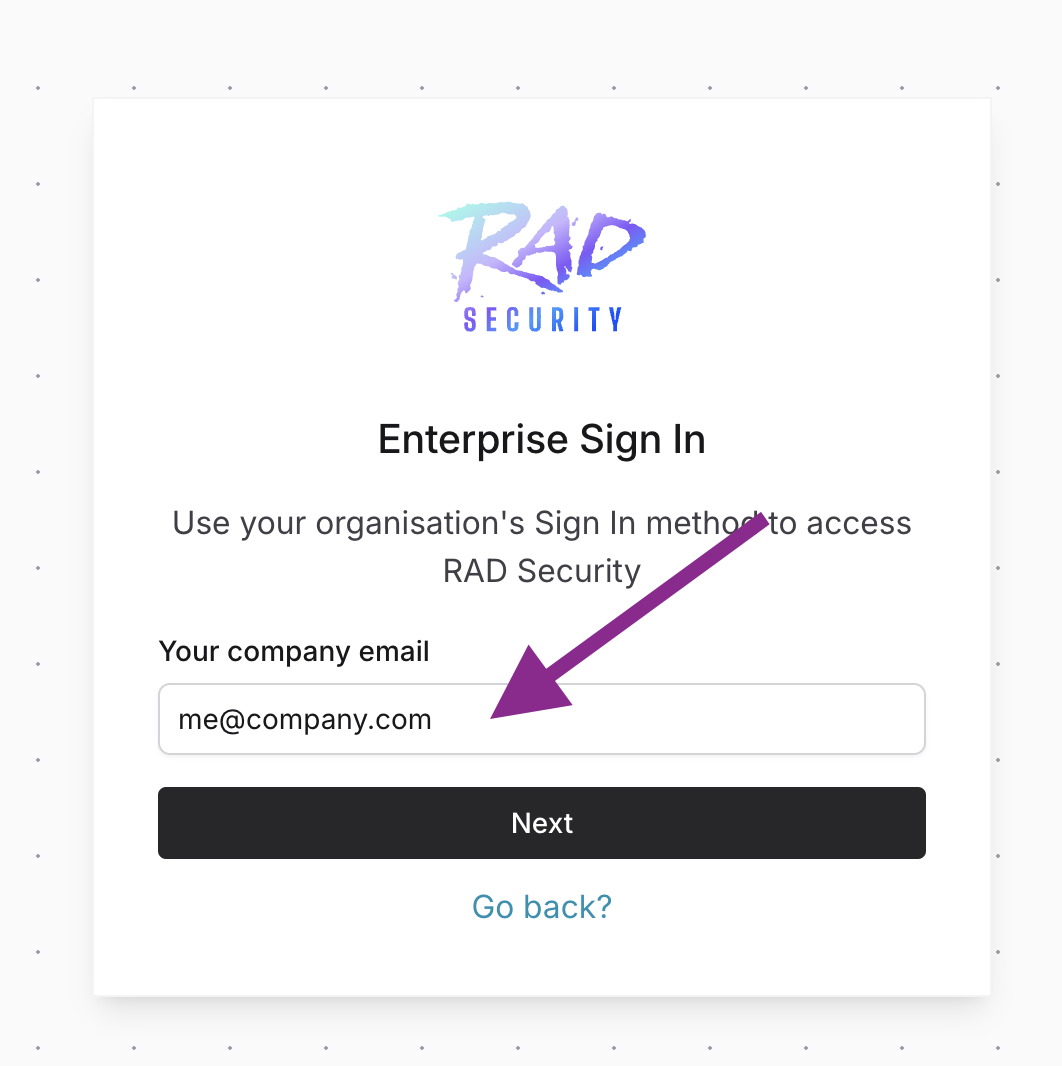
 3. Provide your email address and click **Next**